TeamOrgChart update
The refreshed TeamOrgChart interface makes it easier to find people, switch charts, customize, and access chart tools.
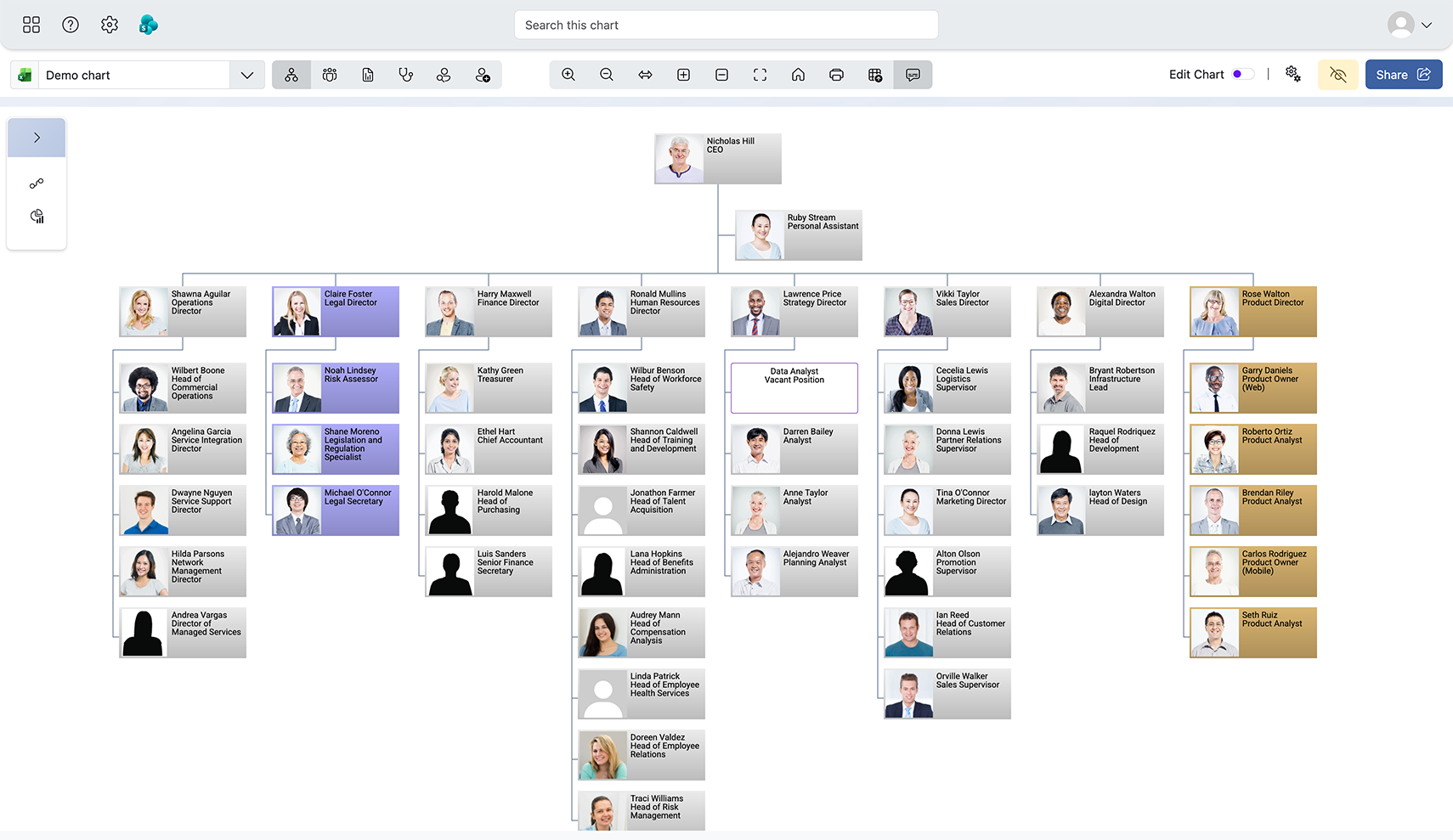
A guide to the new TeamOrgChart
Explore the changes we've made to TeamOrgChart
The updated interface is designed to make the application clearer, more intuitive and easier to navigate, while keeping your organization chart and employee data at the centre of the experience.
You can switch back to TeamOrgChart Classic at any time from the User Settings menu.
Streamlined toolbars
One of the first changes you will notice is the redesigned set of chart toolbars. The new layout makes key tools easier to find and use, while reducing visual clutter so you can focus on your chart and employee data.

The app bar
Search is now front and centre in the app bar. When viewing a chart, you can search for anyone within that chart. From the dashboard, you can search across all your charts.
TeamOrgChart settings are available from the App Settings menu, where you can manage areas such as your account, permissions and user security.
The Support menu gives you access to the tutorials panel, TeamOrgChart user guides on teamimprover.com and a feedback form where you can share comments about the updated experience. For support requests, please submit a ticket through our website.
As before, the app bar also provides a quick way to open your company’s SharePoint site.
You can switch between light and dark themes from the User Settings menu.
The chart bar and view controls
We have redesigned the chart and plan selector to make moving between charts clearer and more intuitive. This selector also shows useful details about the current chart, including its visibility setting and data source.
From the chart bar, you can switch between chart views and actions, including the directory, data health checks, and vacancies. You can also share a chart or update its visibility directly from the chart bar.
Editing controls are now easier to access. You can toggle Edit Mode from the chart bar, or jump directly to a specific settings page from the dropdown menu. Edit Mode gives you the tools needed to edit, customize, and build your chart as you navigate your chart.
Your bookmarks also appear here, so you can move quickly between important locations within your organization chart.
The side panel
The new chart side panel makes it easier to view employee information, edit your chart and access chart-building tools. It remains available as you move around the chart, so you can review information and make changes without losing your place.
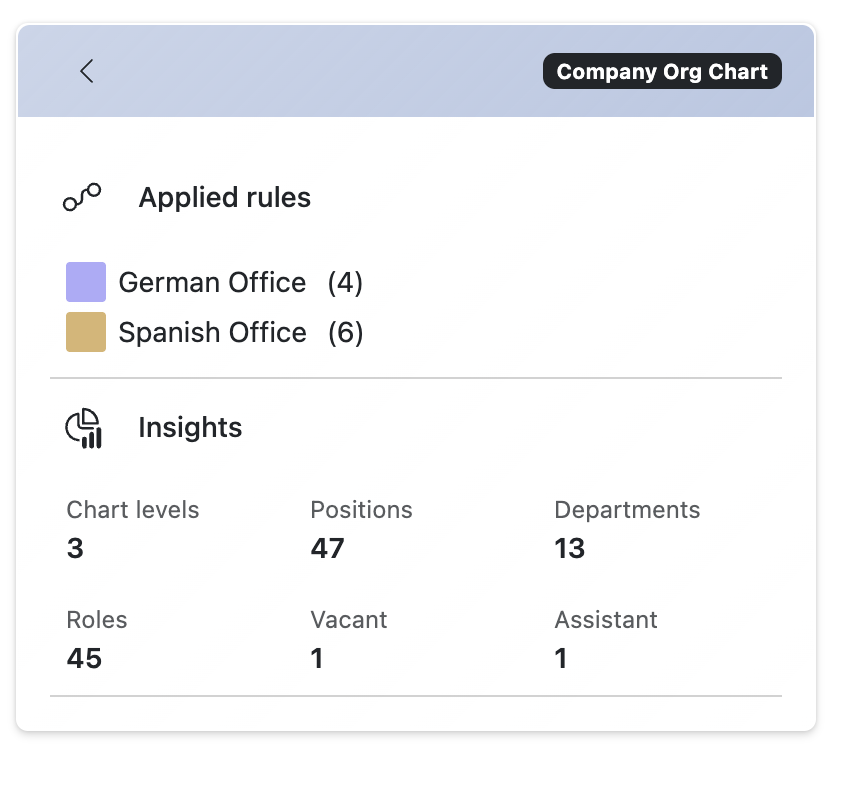
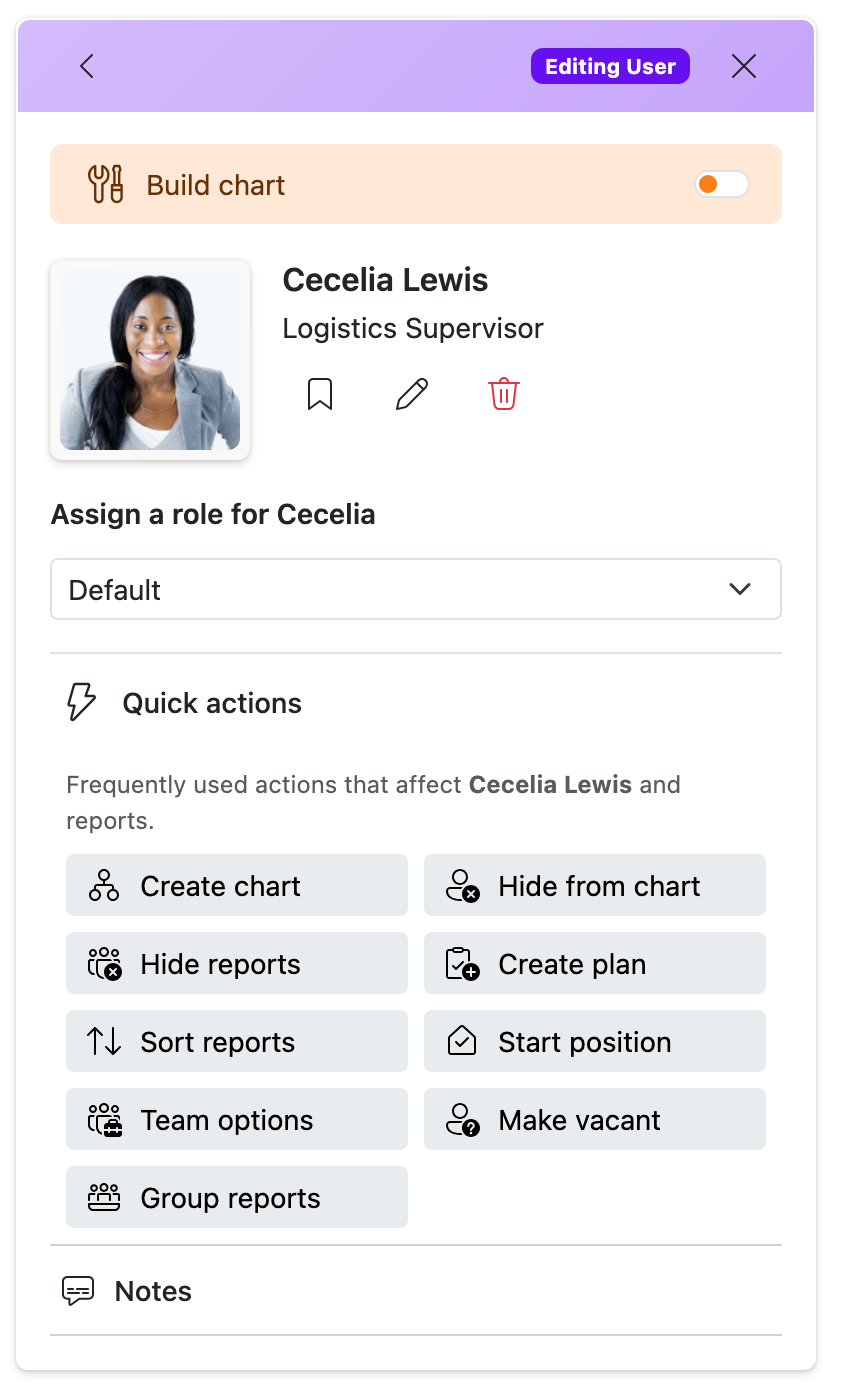
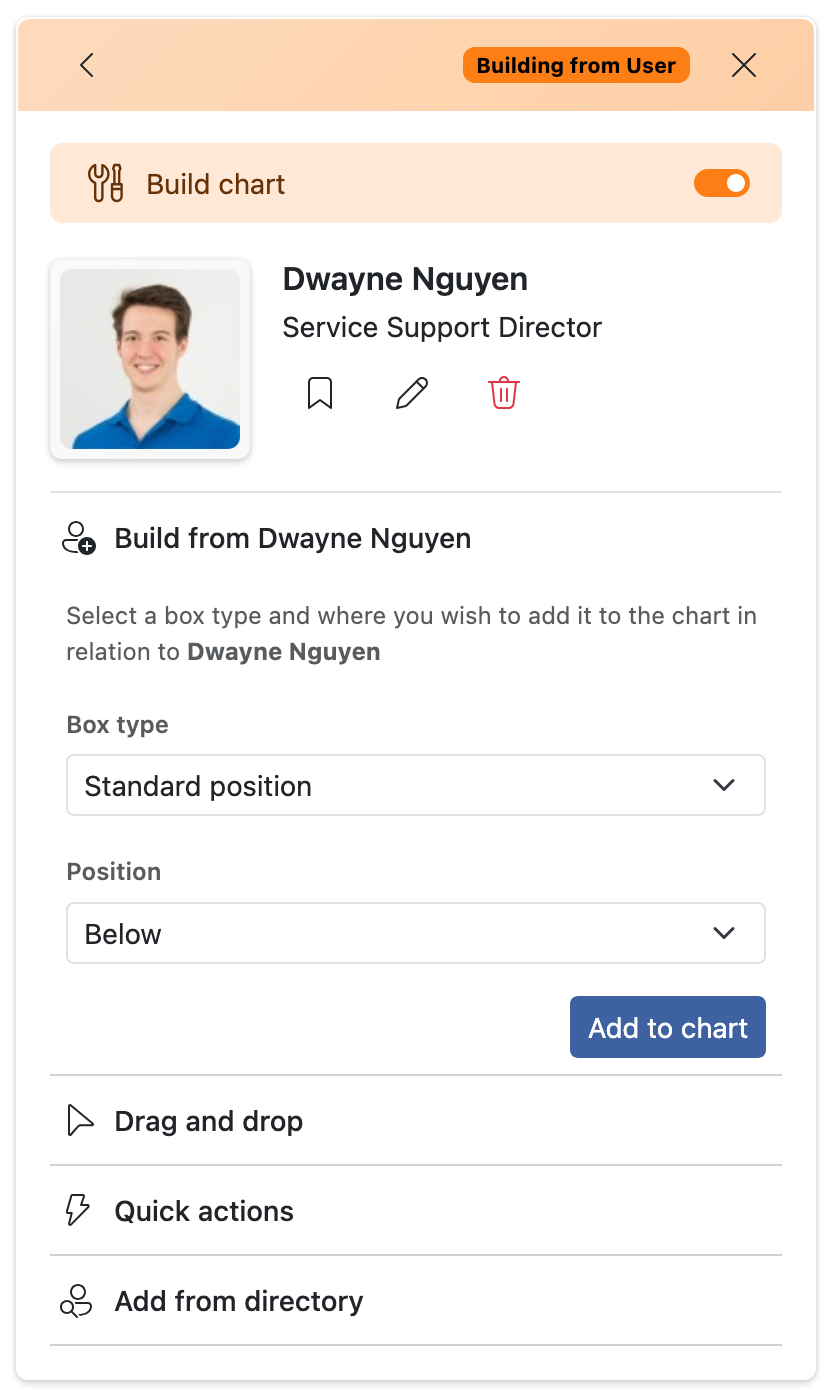
The side panel brings together employee data, Edit Mode options and the Chart Builder in one convenient location. Its content changes dynamically depending on where you are in the chart, which person you have selected and whether you are using Edit Mode or the Chart Builder.
When no chart box is selected, the side panel displays the conditional rules currently in effect, along with useful insights about the section of the chart you are viewing. These insights may include the number of roles and departments in that section.
Employee details
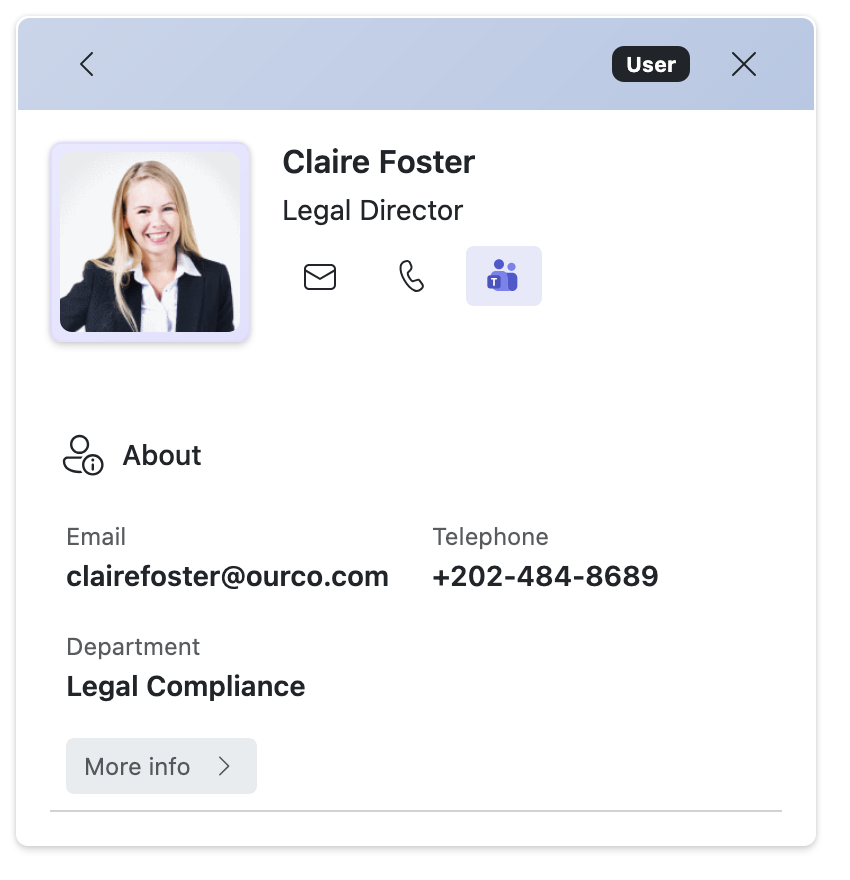
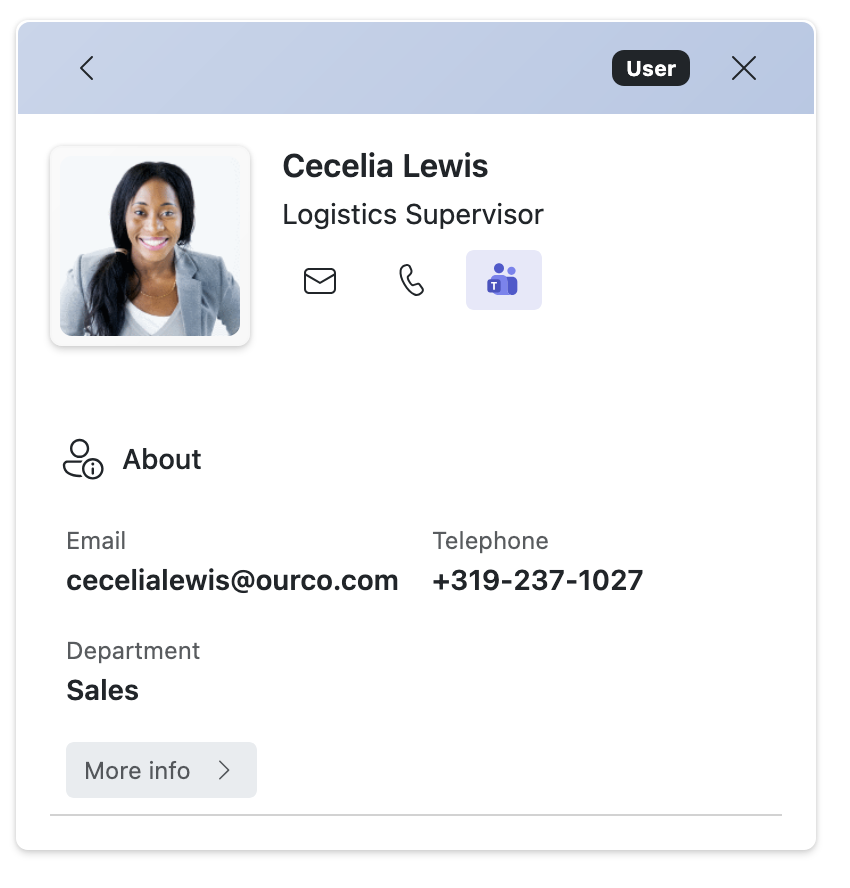
When you select a chart box, the side panel displays key employee information, such as the person’s job title, telephone number and department. You can also start an email, make a call or open a Microsoft Teams chat directly from the panel. The classic employee information pop-up is still available when you need it.
Edit Mode and Chart Builder
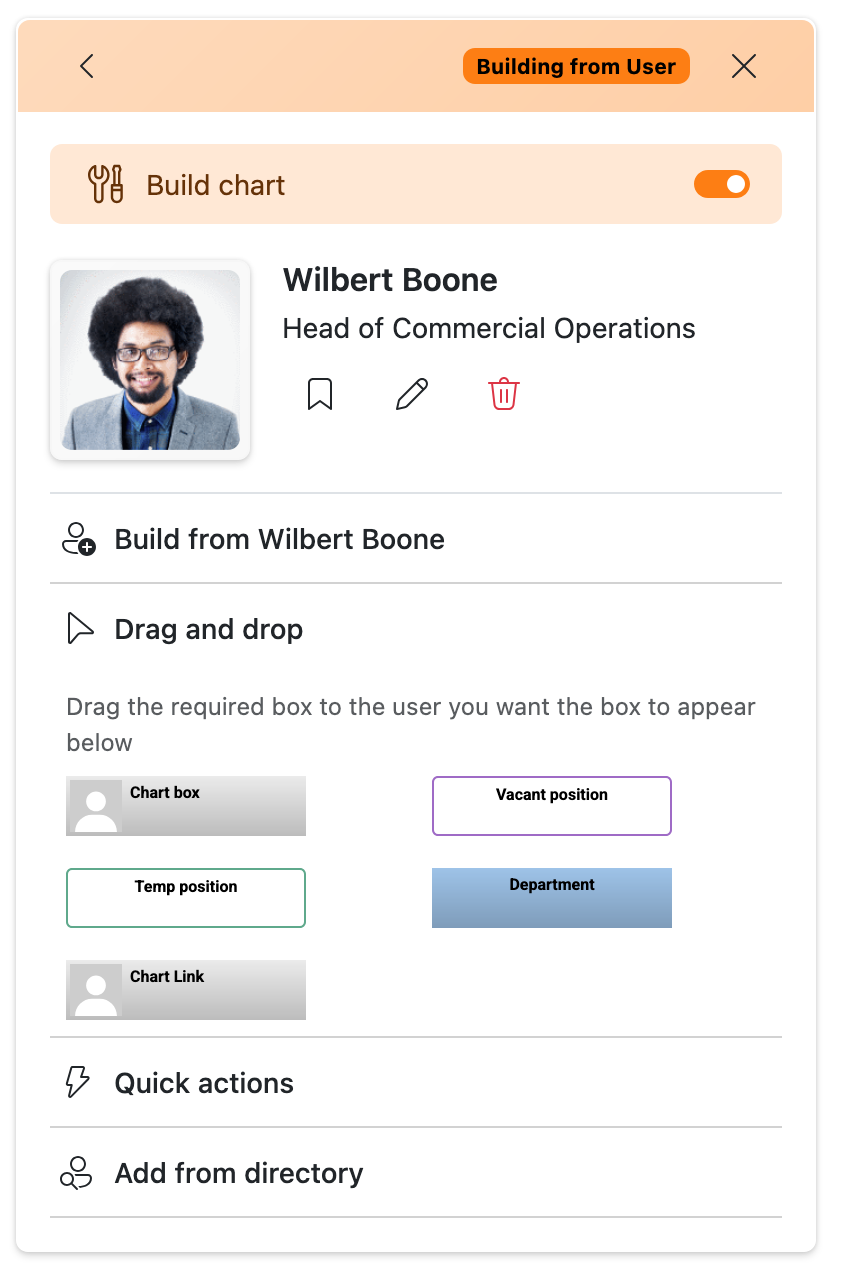
The side panel can also be used to edit and build your chart. You can change the chart’s appearance and behaviour, or select an individual chart box to access actions specific to that person or role.
By opening the enhanced Chart Builder, you can drag and drop the chart boxes you need directly onto your chart. We have also improved the process of building a chart from a specific person. Choose someone from the directory search and select Add to chart. You can then use the available quick actions to make changes involving the selected person and their direct reports.
You can collapse the side panel at any time to create more space and reduce overlap with the chart.
Frequently asked questions about the update
Yes. If your administrator has enabled Classic mode, you can switch back to TeamOrgChart Classic from the User Settings menu.
The refreshed interface includes streamlined chart toolbars, an updated app bar, clearer chart controls, improved search, and a side panel for employee details, Edit Mode, and Chart Builder tools.
TeamOrgChart settings are available from the App Settings menu, where administrators can manage account, permission, and user security options.
There is more to experience in TeamOrgChart
Explore the refreshed interface, updated chart tools, and other changes with a fully featured 30-day trial. No credit card required.
 for Teams
 for SharePoint
 for M365